
404 Not Found404
HTTP 404 Not Found means the server cannot find anything at the requested URL. The server is reachable and understood the request, but there is nothing at that path. This is one of the most common HTTP errors and has many possible causes: the URL may contain a typo, the page may have been deleted or moved without a redirect, the server routing may not match the URL pattern, or the DNS may point to the wrong server entirely. On Linux servers, URLs are case-sensitive (/About is different from /about), which is a frequent source of 404s. Some servers return 404 instead of 403 to hide the existence of a resource from unauthorized users, so if you are sure the resource exists, check whether the 404 is actually a disguised permissions issue.
What HTTP 404 Looks Like in a Browser
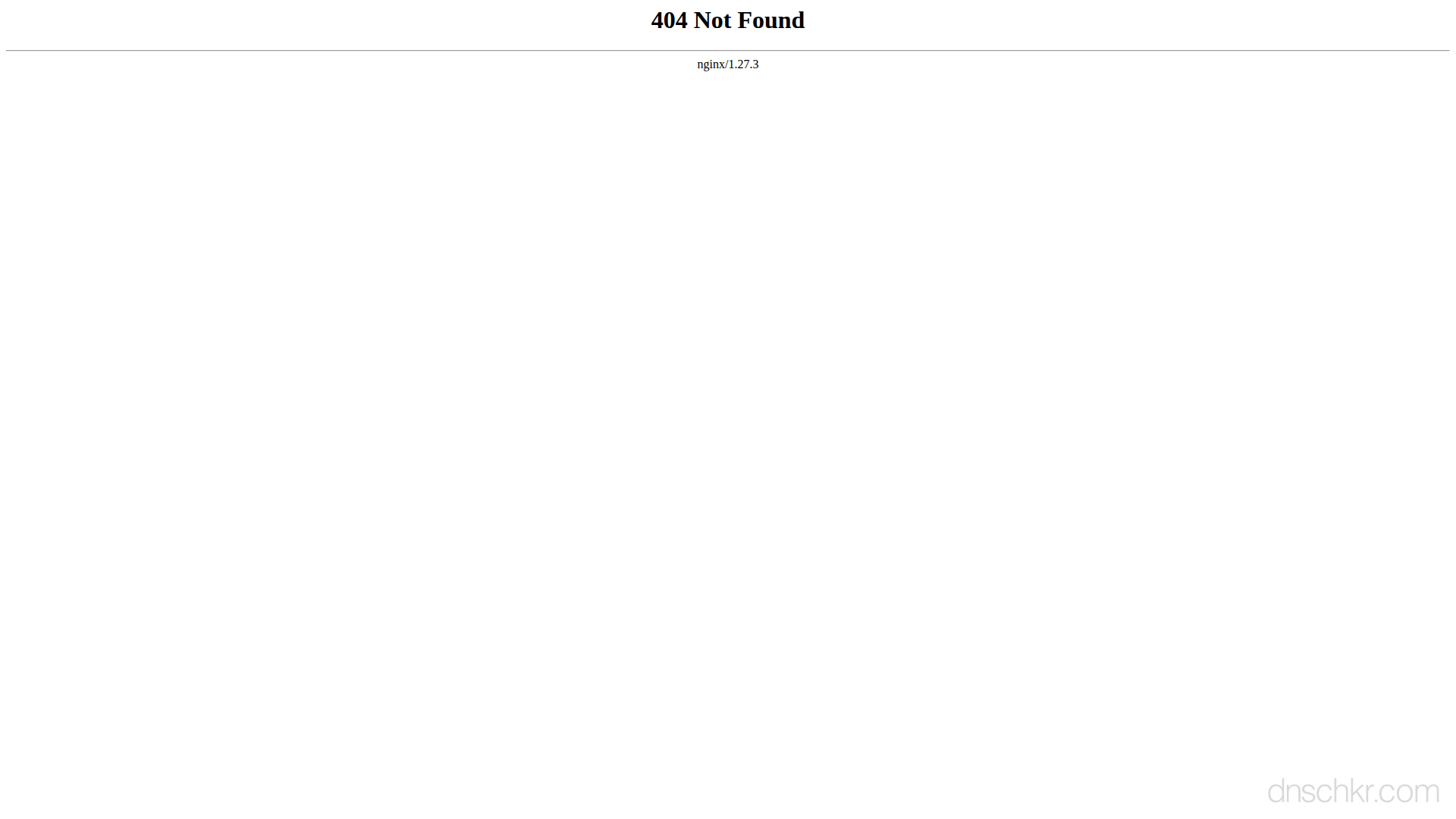
Status
404 Not FoundExample
Request
GET /travel/old-article HTTP/1.1
Host: example.com
User-Agent: Mozilla/5.0
Accept: text/html
Response
HTTP/1.1 404 Not Found
Content-Type: text/html; charset=utf-8
Content-Length: 185

<!doctype html>
<html lang="en">
<head>
  <title>Page Not Found</title>
</head>
<body>
  <h1>404 Not Found</h1>
  <p>The page you are looking for does not exist or has been moved.</p>
</body>
</html>
How to Troubleshoot
1
Check the URL for typos and case sensitivity
Carefully compare the URL against the expected path. On most Linux-based servers, URLs are case-sensitive. Try the URL in lowercase. Check for extra spaces, double slashes (//), or missing segments. Also check if the URL needs a trailing slash or explicitly does not have one.
# Test the URL and see the exact response:
curl -I https://example.com/about-us
# Test with and without trailing slash:
curl -I https://example.com/blog
curl -I https://example.com/blog/
2
Check if the page was moved or deleted (find the new location)
If the URL used to work, the content may have been moved. Check the Wayback Machine for the old page, search the site for similar content, or look at the site's sitemap.xml. If you control the site, search your version control history for when the page was removed and where it went.
# Check the site's sitemap for current pages:
curl -s https://example.com/sitemap.xml | grep -i 'about'
# Check if there is a redirect you are not following:
curl -v https://example.com/old-path 2>&1 | grep -i 'location'
3
Verify DNS resolves to the correct server
Confirm the domain points to the right server IP. If DNS recently changed, the old server may still be cached. Compare the resolved IP against your expected server IP. If using a CDN, verify the CDN origin is configured to the correct backend.
Check DNS Records4
Check server routing configuration
If you control the server, verify the routing handles this URL. For Nginx, check location blocks and try_files directives. For Apache, check rewrite rules and .htaccess files. For application frameworks, check route definitions. For single-page applications, ensure the server returns index.html for all client-side routes (not just /).
# Nginx, check all location blocks:
nginx -T 2>/dev/null | grep -A3 'location'
# Apache, check rewrite rules:
find /var/www/ -name '.htaccess' -exec grep -l 'Rewrite' {} \;
# Check if the file physically exists on disk:
ls -la /var/www/html/about-us.html
5
Set up a 301 redirect if the page moved permanently
If the content moved to a new URL, add a 301 redirect from the old URL to the new one. This preserves SEO, fixes bookmarks, and stops external links from breaking. In Nginx, use 'return 301' or 'rewrite'; in Apache, use RedirectPermanent or RewriteRule; in your application, return a 301 response.
# Nginx redirect example:
# location /old-page { return 301 /new-page; }
# Apache .htaccess redirect example:
# RedirectPermanent /old-page /new-page
6
Check for SPA routing issues (React, Vue, Angular, Next.js)
Single-page applications handle routing on the client side. If a user navigates directly to a deep link (e.g., /dashboard/settings), the server must serve the index.html file for all routes, not just /. Without this, the server looks for a physical file at /dashboard/settings and returns 404. In Nginx, add 'try_files $uri $uri/ /index.html;' to handle client-side routing.
Common Causes
Typo in the URL or incorrect path
highThe URL contains a misspelling, wrong path segment, or incorrect casing. On Linux-based servers (most web servers), URLs are case-sensitive, /About-Us returns 404 if the actual path is /about-us. This also happens when manually typing URLs, when copy-pasting truncates the path, or when a link in an email wraps incorrectly. Check each segment of the URL carefully against the expected path.
Page or resource was deleted or moved without a redirect
highThe content existed at this URL before but was removed or relocated to a new URL without setting up a 301 redirect. This is extremely common after site redesigns, CMS migrations, or URL restructuring. Search engines, bookmarks, and external links continue pointing to the old URL. The correct fix is to add a 301 redirect from the old URL to the new location. This preserves SEO link equity and prevents broken links.
Server routing does not match the URL pattern
highThe web server or application framework has no route defined for this URL pattern. In application frameworks (Next.js, Express, Django, Rails), routes are defined in code or by file structure, if there is no matching route, the framework returns 404. In Nginx, a missing location block or try_files directive means the server does not know how to handle the URL. For single-page applications (React, Vue, Angular), deep links return 404 if the server is not configured to serve index.html for all routes.
Trailing slash mismatch
mediumThe URL with a trailing slash (/blog/) is different from without one (/blog) on many servers. Nginx treats these as different resources unless you explicitly redirect one to the other. Some frameworks are strict about this, Django requires trailing slashes by default, while Express does not. If the server has /blog but not /blog/, or vice versa, one returns 404.
DNS points to the wrong server
mediumThe domain resolves to an IP address that runs a different server or application. This happens after DNS migrations, when A records are stale, or when a CDN caches the wrong origin. The server at that IP responds with 404 because it has no content at the requested path. The content is on a different server. Check DNS resolution to verify the domain points to the correct IP.
Quick Diagnostics
Related Status Codes
References
| Specification | Section |
|---|---|
| HTTP Semantics | RFC 9110 §15.5.5 |
Frequently Asked Questions

This reference was compiled from official RFCs, protocol specifications, and hands-on troubleshooting experience. AI tools were used primarily for formatting and organizing the content on the page.