ERR_CERT_DATE_INVALID Certificate Date InvalidERR_CERT_DATE_INVALID
criticalBrowser Error
ERR_CERT_DATE_INVALID occurs when the browser determines that the server's certificate is outside its validity period. Every SSL/TLS certificate has a notBefore and notAfter date embedded in it. If the current date falls outside that range, the browser rejects the connection because it cannot verify that the certificate was legitimately issued and is still trusted by its Certificate Authority. This is one of the most common SSL errors users encounter, and it can be caused by either a genuinely expired certificate on the server or an incorrect system clock on the client machine.
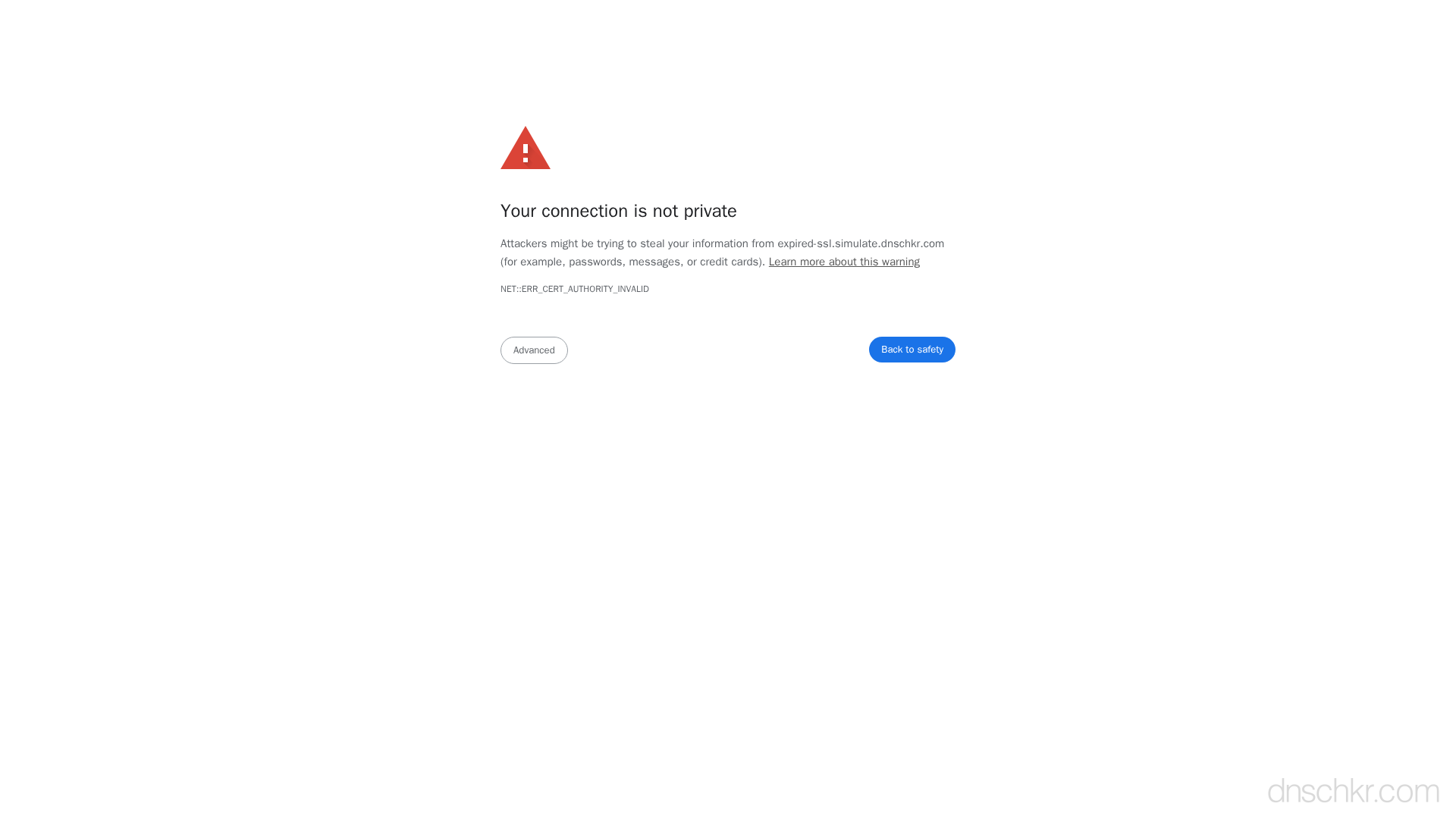
What This SSL Error Looks Like in Chrome
Status
ERR_CERT_DATE_INVALID: Certificate Date InvalidExample
Browser Error Message
Your connection is not private

Attackers might be trying to steal your information from www.example.com (for example, passwords, messages, or credit cards).

NET::ERR_CERT_DATE_INVALID

This server could not prove that it is www.example.com; its security certificate expired 3 days ago. This may be caused by a misconfiguration or an attacker intercepting your connection.
How to Troubleshoot
1
Check the certificate expiration date
Use openssl to connect to the server and inspect the certificate validity dates. Look at the 'Not Before' and 'Not After' fields to determine if the certificate is expired or not yet valid.
openssl s_client -connect yourdomain.com:443 -servername yourdomain.com 2>/dev/null | openssl x509 -noout -dates
2
Verify your system clock
If the certificate dates look correct, the problem may be on the client side. Check that the system clock is accurate and set to the correct timezone. On Linux, use timedatectl; on macOS, check System Preferences > Date & Time.
date && timedatectl status
3
Renew the certificate
If the certificate has expired, renew it. For Let's Encrypt, run certbot renew. For other providers, generate a new CSR and reissue through your CA's dashboard. Then restart your web server to load the new certificate.
sudo certbot renew --force-renewal && sudo systemctl restart nginx
4
Set up automatic renewal
Prevent future expirations by configuring a cron job or systemd timer for automatic renewal. Certbot usually installs a timer automatically, but verify it is active.
systemctl list-timers | grep certbot
5
Verify port 443 is serving the renewed certificate
After renewal, confirm the server is actually serving the new certificate and not a cached or stale one. Use the port scanner to verify HTTPS is accessible.
Scan PortsCommon Causes
SSL certificate has expired
highThe most common reason. Certificates from Let's Encrypt expire every 90 days, and commercial certificates typically expire after 1 year. If automatic renewal failed or was never configured, the certificate will eventually expire and browsers will reject it.
System clock is incorrect on the client
mediumIf the user's computer clock is set to a date in the past or far in the future, the browser will calculate that the certificate is outside its validity window even though it is perfectly valid. This is common on devices with dead CMOS batteries or incorrect timezone settings.
Certificate was issued with incorrect dates
lowIn rare cases, the Certificate Authority may have issued the certificate with a notBefore date in the future or an unusually short validity period. This typically only happens with self-signed or internal CA certificates where the issuer's own clock was wrong.
Quick Diagnostics
Related Error Codes
ERR_CERT_AUTHORITY_INVALID
Certificate Authority Invalid
The browser does not trust the Certificate Authority that signed the server's SSL certificate.
ERR_CERT_COMMON_NAME_INVALID
Certificate Name Mismatch
The domain name in the URL does not match any of the names listed in the server's SSL certificate.
certificate_expired (45)
Certificate Expired
The TLS peer rejected the certificate because it has passed its expiration date.
Frequently Asked Questions

This reference was compiled from official RFCs, protocol specifications, and hands-on troubleshooting experience. AI tools were used primarily for formatting and organizing the content on the page.